Objective: Creating templates in LibreOffice Writer and saving for distribution.
Task:
- Prepare a template for the class time table.
- Apply formatting as required.
- Set this template as a default template. • Reset the default template as usual.
Solution:
- Create a new document in LibreOffice Writer.
- Click on Format > Page Style option.
- A page style dialog box will appear.
- Select Area > Image > Add/Import option.
- Apply desired options for background and click on OK button.
- Insert table for time table and format it as per your choice.
Saving file as template
- Click on File > Templates > Save as Template option.
- A Save As Template dialog box will appear.
- “Time Table ” as Template Name in Enter Template Name dialog box.
- Select Template Category as MyTemplate.
- Click on Set as default template option.
- Click on Save button.
Reset default template
- Click on File > Templates > Manage Templates option.
- A manage template dialog box will appear.
- Click on Manage > Reset Default Text Document option.
- Click on Close button.
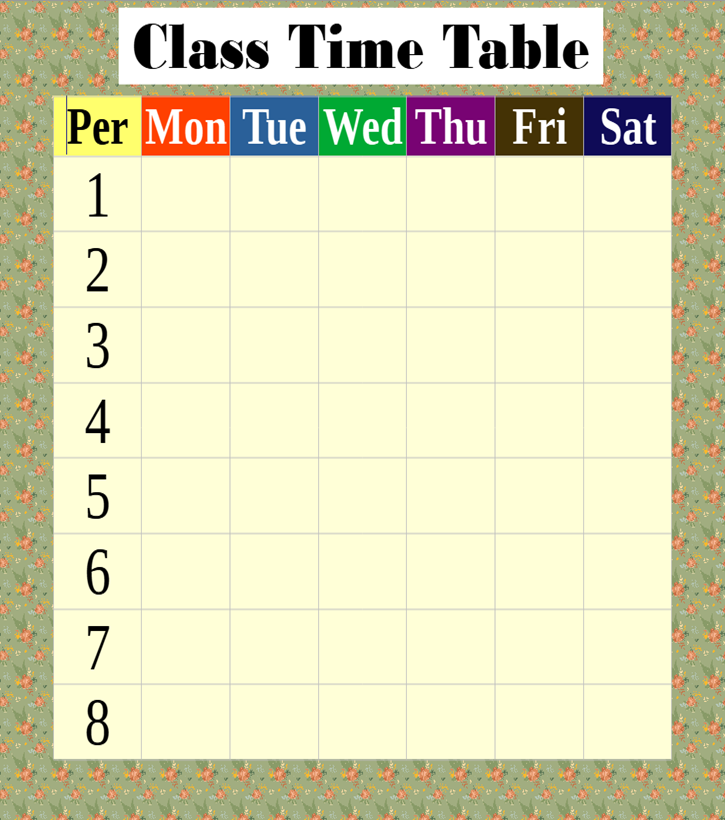
Output : IT 402 : Practical 3 : Create and use templates