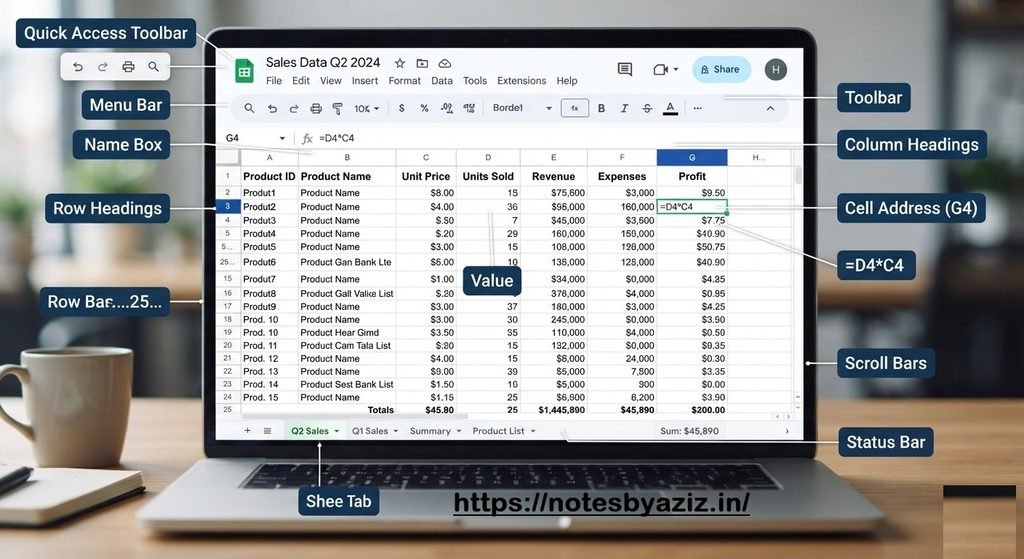
An electronic spreadsheet is software used to store, organize, calculate, and analyze data in rows and columns.
1. Consolidation & Subtotal
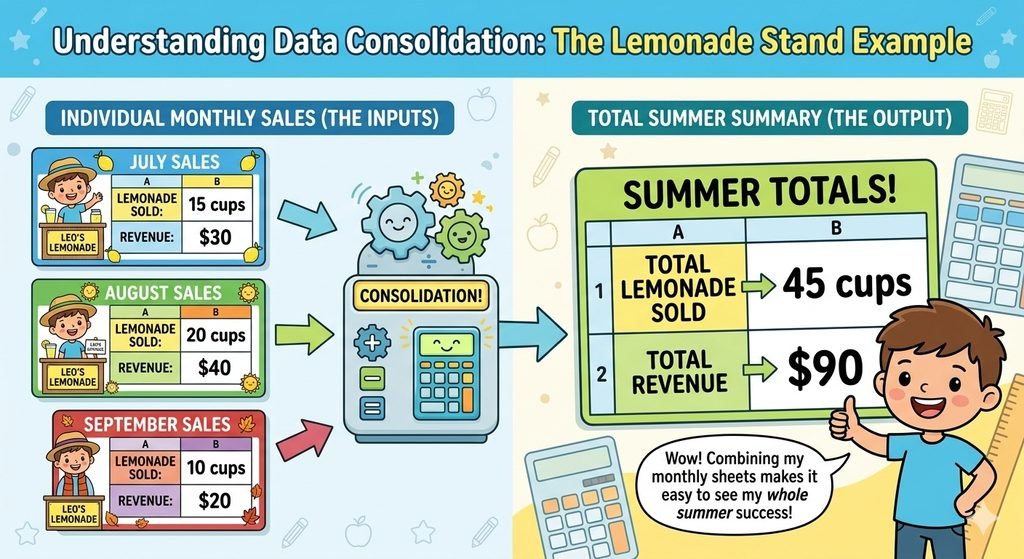
Combines data from different worksheets into a single, centralized location.
Core Functions: Common functions used to summarize data include SUM, AVERAGE, COUNT, MAX, MIN, and PRODUCT.
Navigation Path: Go to Data → Consolidate.
💡 : The main purpose of consolidation is to quickly summarize data collected across multiple individual sheets.
📌 Groups & Subtotal
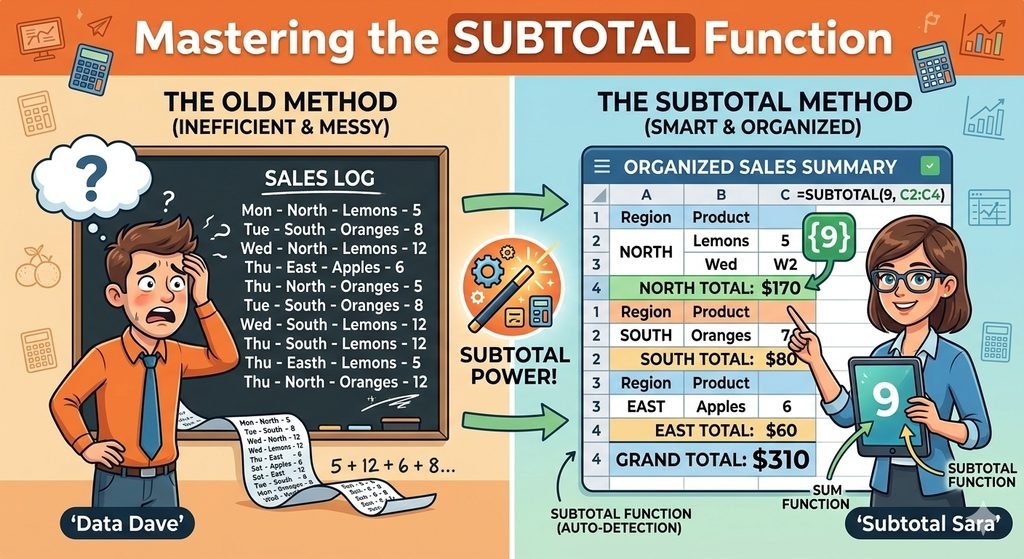
Groups similar data together to automatically calculate sub-totals and grand totals.
Core Functions: Automatically groups rows or columns to calculate SUM, COUNT, AVERAGE, MAX, or MIN.
Interface: Created data groups can be easily expanded using the plus icon (+) or collapsed using the minus icon (-).
💡 : You must always sort your data before using the Subtotal feature to ensure accurate grouping.
🔍 Consolidation vs. Subtotal: What’s the Difference?
| Feature | Where is the data? | What does it do? |
|---|---|---|
| Consolidation | Spread across multiple different sheets. | Combines them into one final summary sheet. |
| Subtotal | Already sitting on one single sheet. | Breaks a big list down into smaller, organized groups. |
2. What-if Analysis Tools
📌 Scenario
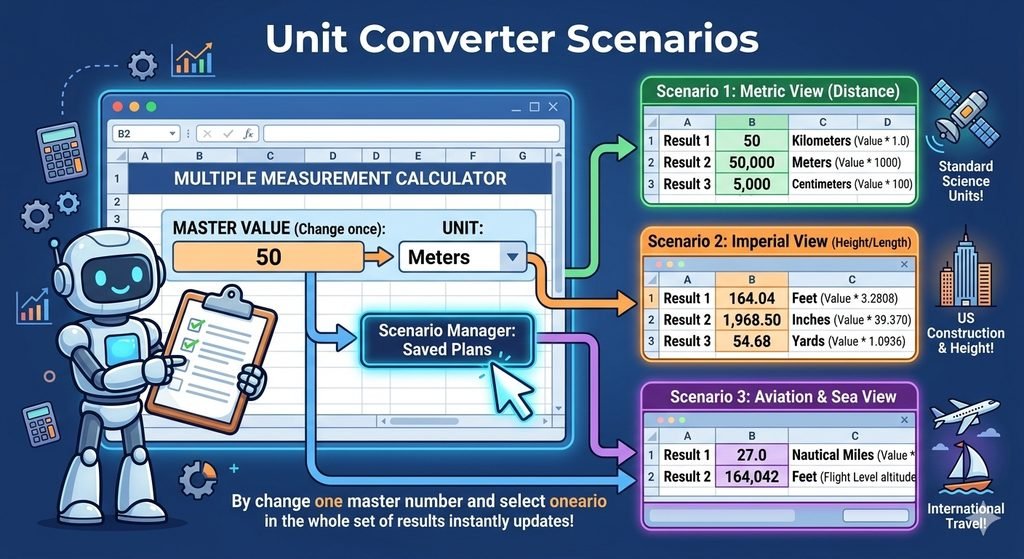
A tool used to save, swap, and compare different sets of values (variables) to instantly observe different outcomes.
Navigation Path: Go to Tools → Scenarios.
💡 : You can create and store multiple scenarios within a single worksheet.
📌 Multiple Operations
A tool used to calculate and display different formula results simultaneously by using different sets of input values.
Navigation Path: Go to Data → Multiple Operations.
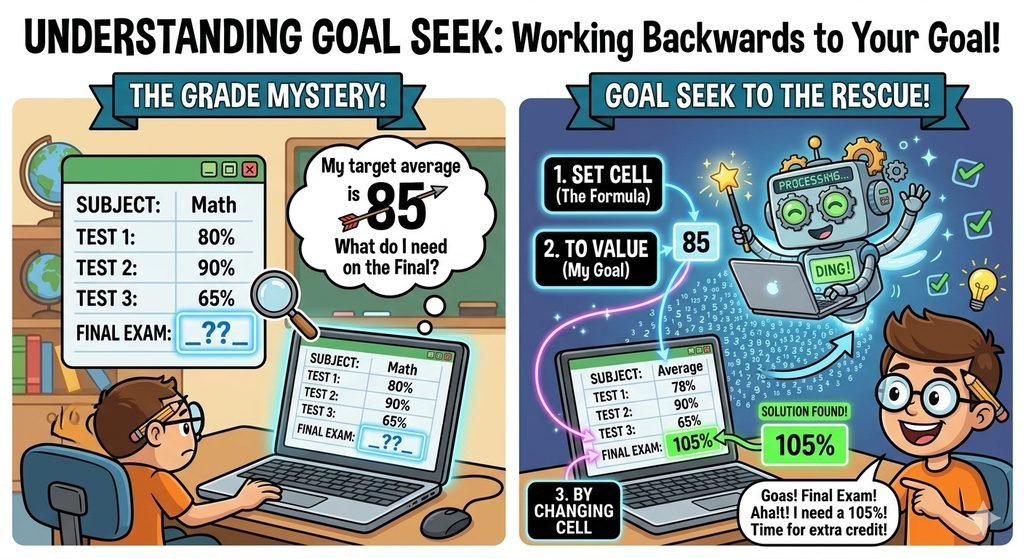
📌 Goal Seek
A tool that finds the specific input value required to achieve a known, desired target result.
Practical Example: Calculating the exact loan duration required when your monthly EMI budget is fixed.
💡 : Goal Seek is limited to altering exactly one input value at a time to reach the desired target.
3. Macros
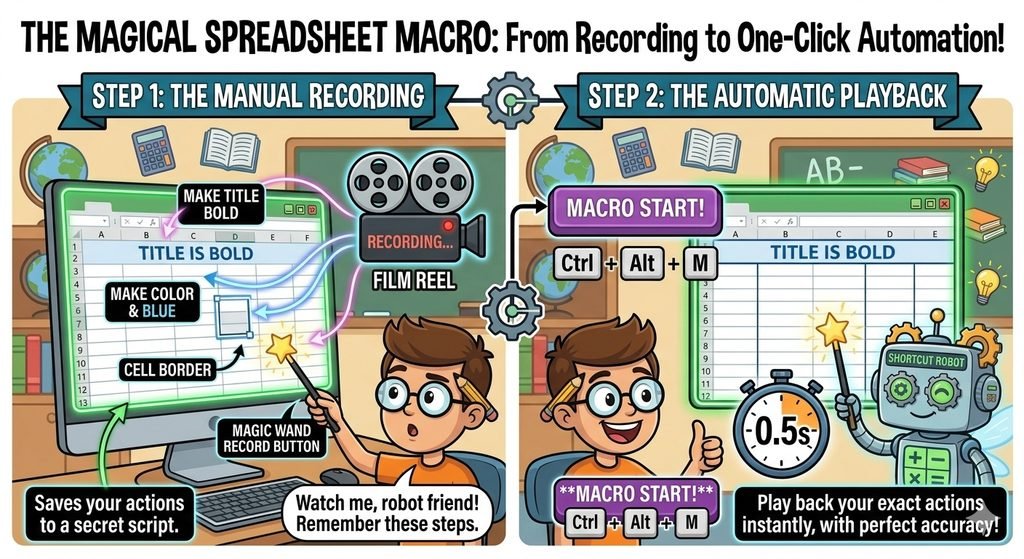
A recorded sequence of commands, keystrokes, or actions that automatically executes repetitive tasks.
Key Benefits: Saves valuable time, significantly minimizes manual repetition, and allows easy reuse of recorded workflows.
Navigation Paths:
To Record: Go to Tools → Macros → Record Macro.
To Run: Go to Tools → Macros → Run Macro.
Naming Rules: Macro names must begin with a letter, strictly prohibit spaces, and can only use underscores (_) as a separator.
💡 : Macro recording functionality must be explicitly enabled in your software settings before you start recording.
4. Data Linking & External References
📌 Cell Referencing & Hyperlinks
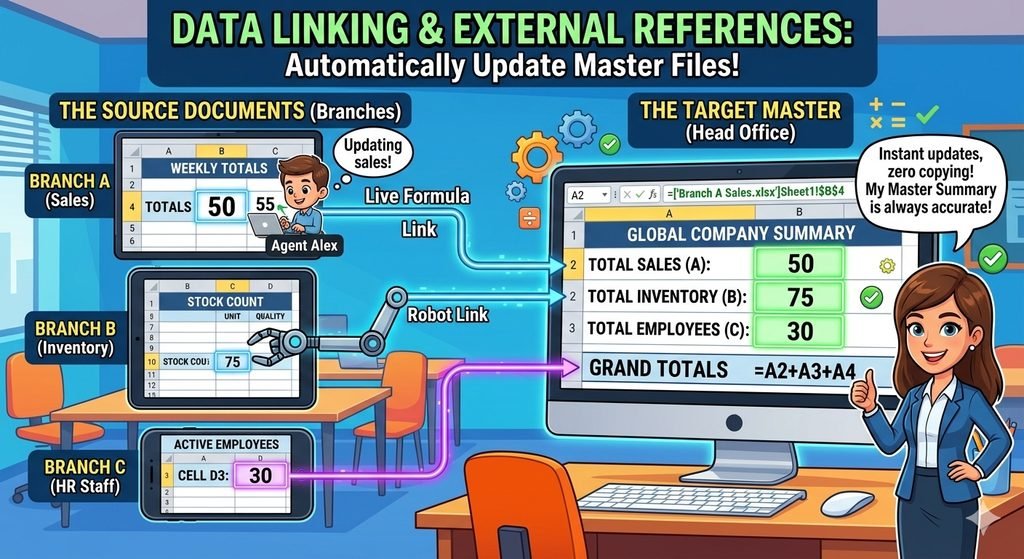
Links cells across different sheets or completely separate files to utilize data dynamically without copying it manually.
Hyperlink Types:
Absolute Hyperlink: Stores the full, complete system or web path of a file from the root directory.
Relative Hyperlink: Stores a path that is relative only to the current working folder location.
⚠️ Important Note: Absolute hyperlinks will completely break and stop working if the target file is relocated to a different folder.
📌 External Data Import
LibreOffice Calc is capable of directly importing external data tables from the following file formats:
Web/Data pages: HTML pages & XML files
Spreadsheet files: ODS files & raw Text files
Databases: LibreOffice Base databases
5. Collaborative Tools
📌 Share Spreadsheet & Track Changes
Enables multiple collaborative users to open, view, and edit the exact same spreadsheet simultaneously.
Navigation Path:
To Share: Go to Tools → Share Spreadsheet.
To Track: Go to Edit → Track Changes → Record / Manage.
💡 : If two active users try to edit the exact same cell at the exact same moment, LibreOffice will launch a Resolve Conflict dialog box to settle the discrepancy.
📌 Merge & Compare Documents
Merge Documents: Combines distinct, separate file edits made by different users back into one master spreadsheet.
Compare Documents: Opens two spreadsheet files side-by-side to highlight and visually isolate the exact differences between them.
💡 : Inside merged documents, any specific edits made by different authors are automatically highlighted in distinct, unique colors.